

You can run a smaller DeepSeek-R1 model on your own computer with Ollama. Install Ollama, download an explicit model tag, and run your first prompt from a terminal. Start with deepseek-r1:1.5b on a memory-limited computer, or consider deepseek-r1:8b when you have more headroom. These are smaller models in the R1 family, not the full 671B DeepSeek-R1 checkpoint.
This guide covers Windows, macOS, and Linux, explains RAM and VRAM planning, and shows how to confirm that inference is local. You do not need a DeepSeek API key for this local Ollama workflow.
Documentation reviewed: October 11, 2026. Commands and package details were checked against official sources. Memory recommendations are planning estimates; this guide does not report a hands-on installation, hardware benchmark, or guaranteed performance.
Before you start
- Use a supported system: check the current Ollama requirements for your operating system. GPU acceleration also depends on your hardware and drivers.
- Keep disk space available: the model download is separate from RAM and VRAM. Leave additional space for the application, temporary files, and any other models you keep.
- Use the internet for setup: installation and the initial model download require connectivity. A downloaded local model can subsequently generate responses offline.
- Start with one model and a short context: the examples use a 4,096-token context to make memory use easier to assess.
RAM is your computer’s system memory. VRAM is memory on a discrete graphics card. On Apple Silicon, CPU and GPU share unified memory, so do not add “RAM plus VRAM” as if they were separate pools.
Which DeepSeek model fits your computer?
The table below separates verified package sizes from estimated system-memory planning. The listed Ollama packages use Q4_K_M weight quantization as of the review date. Quantization reduces the size of the weights; it does not remove runtime overhead or the memory needed for conversation context.
| Ollama model tag | Listed download | System RAM planning estimate |
|---|---|---|
deepseek-r1:1.5b | 1.1 GB | 8 GB: a conservative starting point for a small installation test |
deepseek-r1:7b | 4.7 GB | 16 GB |
deepseek-r1:8b | 5.2 GB | 16 GB |
deepseek-r1:14b | 9.0 GB | Prefer 24–32 GB |
deepseek-r1:32b | 20 GB | 32–48 GB |
deepseek-r1:70b | 43 GB | 64 GB or more; evaluate the workload carefully |
Assumptions: one request, a 4,096-token context, Q4_K_M weights, and no other model loaded. RAM figures are editorial planning estimates for system-memory or mixed CPU/GPU execution, not official minimums. A discrete GPU may hold much of the model, while other applications and longer contexts increase the memory you need. Package sizes are rounded values from the official Ollama model library; check the tag before downloading.
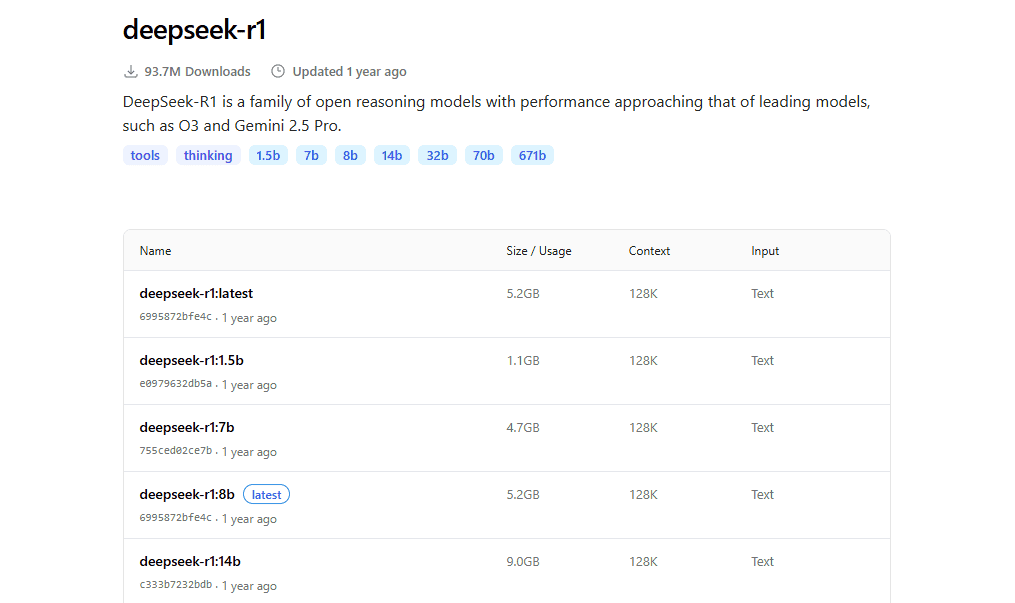
Check the download size of the exact model tag before installing it. Download size is not the same as total runtime memory use.For GPU planning, an 8 GB compatible card is a reasonable short-context starting point for the 7B or 8B packages. A 12 GB card may accommodate 14B at short context, but 16 GB gives more headroom. A 24 GB card can be a starting point for 32B with short context. None of these capacities guarantees that a particular setup will fit or run quickly. The 70B package needs substantially more capacity and is not a sensible first installation.
Important version detail: the current deepseek-r1:8b package identifies DeepSeek-R1-0528-Qwen3-8B. It is not the original Llama-based 8B distill. Size tags can be updated, so record the model ID and details when you compare results. See our DeepSeek R1 guide for the distinction between full R1 and its smaller variants.
Step 1: Install Ollama on Windows, macOS, or Linux
Windows
- Download the installer from Ollama’s official Windows download page.
- Run the installer, then open Ollama. The native installation runs the server in the background; Docker and WSL are not required for this beginner route.
- Open a new PowerShell window and check the installation:
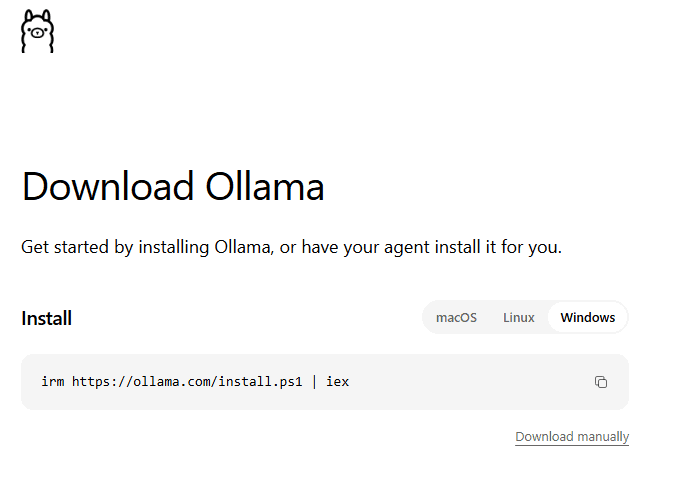
Select Windows on the official Ollama download page to download the installer.ollama -vYou should see a version response. If Windows cannot find the command, close and reopen PowerShell. Check the Windows installation documentation if it is still unavailable.
macOS
- Download Ollama from the official macOS page.
- Open the disk image, move Ollama to Applications, and launch it. Follow its prompt to make the command-line tool available.
- Open Terminal and run
ollama -v.
The current macOS documentation requires macOS Sonoma 14 or later. Apple Silicon supports CPU and GPU execution; Intel Macs use CPU execution. Check the current requirements if your system is older.
Linux
The standard command shown in the official Linux installation guide is:
curl -fsSL https://ollama.com/install.sh | shThis downloads and executes Ollama’s installer. If your environment requires reviewing scripts first, follow your organization’s installation process. After installation, check ollama -v. On a systemd installation, check the service with:
systemctl status ollamaIf the installed service is inactive, start it with sudo systemctl start ollama. If you used a manual installation without a background service, run ollama serve in a separate terminal. Do not start a second server when the app or service is already running.
Step 2: Download a local DeepSeek model
Choose one model from the table. For an 8B setup, run:
ollama pull deepseek-r1:8bWait for the download to finish. Check that the package appears in your installed-model list:
ollama ls
ollama show deepseek-r1:8b
If you want a smaller initial test, substitute deepseek-r1:1.5b in these commands. Downloading several sizes is optional; you only need the one you intend to run. Keep the model tag explicit instead of assuming an unqualified model name identifies a particular checkpoint.
Step 3: Run your first prompt
Set a short context before the model loads. Create a plain-text file named Modelfile containing:
FROM deepseek-r1:8b
PARAMETER num_ctx 4096
Save it without a .txt extension, then open a terminal in the folder containing that file and run:
ollama create deepseek-r1-8b-4k -f Modelfile
ollama run deepseek-r1-8b-4k
This creates a named configuration around the downloaded weights; it does not train or fine-tune a model. If you downloaded 1.5B instead, use FROM deepseek-r1:1.5b and a distinct name such as deepseek-r1-1.5b-4k. The official Modelfile reference documents this approach.
Then try a small, verifiable task:
Write a Python function that returns the largest number in a list. Explain what should happen when the list is empty and include two tests.Check the returned code and reasoning yourself. A coherent answer confirms that generation is working; it does not establish accuracy on your real tasks. First loading and reasoning can take time, particularly with CPU execution.
Once this works, use the task examples in our DeepSeek coding guide to evaluate the model on debugging, tests, and code review.
Step 4: Check GPU use and allocated context
While the model is loaded, open another terminal and run:
ollama psInspect the model name, PROCESSOR, and, in current versions, CONTEXT. Ollama documents CPU-only, GPU-only, and mixed placement. This tells you where the model was loaded; it is not a measurement of speed or a guarantee that memory will remain sufficient for every request.
- GPU-only: the model is loaded on the GPU. Other GPU applications still reduce available headroom.
- CPU-only: the model is loaded in system memory. It can work without a supported discrete GPU, but generation may be slow.
- Mixed CPU/GPU: part of the model runs from system memory. If performance is disappointing, try a smaller model or shorter context.
Check the current Ollama hardware-support documentation for your exact GPU and driver. A GPU being installed in your computer does not mean the runner supports it.
After checking placement, enter /bye in the chat terminal to leave the conversation. Exiting chat does not necessarily unload the model immediately. To release its loaded memory, use its configured name:
ollama stop deepseek-r1-8b-4kDeepSeek R1 14B quantized RAM and VRAM requirements
The Q4_K_M 14B package is listed as a 9.0 GB download, but it needs more than the weight-file size during execution. For system-memory or mixed execution, 24–32 GB RAM is a sensible planning range. For mostly GPU execution, a 12 GB card may fit short-context use when enough memory is free; a 16 GB card provides more headroom. These are estimates, not tested minimum requirements.
The explicit quantized package is deepseek-r1:14b-qwen-distill-q4_K_M. To select it:
ollama pull deepseek-r1:14b-qwen-distill-q4_K_MSave this configuration as a plain-text file named Modelfile-14b, without a .txt extension:
FROM deepseek-r1:14b-qwen-distill-q4_K_M
PARAMETER num_ctx 4096
From the folder containing that file, run:
ollama create deepseek-r1-14b-4k -f Modelfile-14b
ollama run deepseek-r1-14b-4k
Use ollama ps from another terminal to inspect placement and allocated context. After your test, exit with /bye and unload this configuration with ollama stop deepseek-r1-14b-4k.
Why 9 GB of weights is not the whole memory budget
Runtime memory includes model weights, a key/value (KV) cache for context, computation buffers, and runner overhead. Your operating system and other applications also need memory. Longer contexts and additional concurrent requests increase the budget.
| 14B context setting | Calculated F16 KV cache for one sequence |
|---|---|
| 4,096 tokens | Approximately 0.75 GiB |
| 8,192 tokens | Approximately 1.50 GiB |
These are theoretical cache allocations derived from the official 14B configuration: 48 layers, 8 KV heads, and a head dimension of 128. The calculation is 2 × 48 × 8 × 128 × 2 bytes × context tokens, assuming an F16 cache. It excludes weights, buffers, allocator overhead, and other processes; it is not measured total VRAM use. Weight quantization and KV-cache precision are separate settings.
Also keep units consistent: Ollama’s rounded 9.0 GB download is about 8.38 GiB. Do not compare that number directly with a GiB cache calculation and declare an exact fit. If your 14B setup runs out of memory, reduce context, unload other models, or step down to 8B before buying hardware.
Control context length before increasing model size
Context is the token budget for the prompt, conversation history, and generated output. Leave room for the answer and any reasoning tokens: 4,096 tokens does not mean 4,096 input tokens plus unlimited output. A model’s advertised context capacity is a ceiling, not a promise that your computer can allocate it comfortably. Ollama’s current documentation describes hardware-dependent defaults; set a value explicitly when comparing setups.
Start at 4,096 tokens. Increase it only when your task needs more input, then check ollama ps and resource use again. Begin a fresh conversation if the old history no longer fits the smaller context. See Ollama’s context-length guide for current settings.
Use DeepSeek through Ollama’s local API
Ollama’s default local server listens on 127.0.0.1:11434. This is your local Ollama API, not DeepSeek’s hosted API. The following Python 3 example uses the standard library and works across operating systems when Ollama is running and the model is downloaded:
import json
import urllib.request

payload = {
    "model": "deepseek-r1:8b",
    "messages": [{"role": "user", "content": "Explain a Python list in one sentence."}],
    "stream": False,
    "options": {"num_ctx": 4096},
}

request = urllib.request.Request(
    "http://127.0.0.1:11434/api/chat",
    data=json.dumps(payload).encode("utf-8"),
    headers={"Content-Type": "application/json"},
    method="POST",
)

with urllib.request.urlopen(request, timeout=600) as response:
    result = json.load(response)

print(result["message"]["content"])
Run it with the Python 3 command configured on your system. The long timeout accommodates slow initial loading; it is not a performance expectation. See the official chat endpoint reference for response fields and options. Keep the server on loopback for this personal setup. Do not expose it publicly without access controls.
Fix common Ollama and DeepSeek errors
| Problem | What to check and do |
|---|---|
ollama is not recognized | Open a new terminal after installing. Run ollama -v. If it still fails, follow the official installation instructions for your OS. |
| Cannot connect to Ollama or connection refused | Start the Windows or Mac app, or check the Linux service. For a manual setup, start ollama serve. Avoid a duplicate server if the app is already running. |
| Download fails or tag is unavailable | Check connectivity, free disk space, and the exact tag in the official model library. Retry ollama pull with that tag. A private network may need a correctly configured proxy. |
| Model needs more memory or fails to load | Stop other loaded models, close memory-heavy apps, and reduce context. Try deepseek-r1:1.5b or 8B rather than repeating a 14B request that cannot fit. |
| Generation is very slow | Run ollama ps. Check CPU/GPU placement, context size, and whether the exact GPU is supported. A smaller model may be more useful than a larger model that constantly offloads. |
| Port 11434 is already in use | The app or service may already be running. Use that server rather than launching another ollama serve process. Check which application owns the port before changing anything. |
| Answers differ from DeepSeek web chat | Check ollama show and record the tag, quantization, model ID, context, and prompt. You are comparing different model/deployment settings, not necessarily the same product. |
| Image input does not work | The R1 packages used here are text-model routes. Choose a separately documented vision model and compatible runner; do not assume R1 accepts images. |
For persistent failures, use Ollama’s troubleshooting and log instructions. Inspect logs before sharing them, because your surrounding applications may record sensitive data.
Verify offline use and understand privacy
After downloading the model, disconnect from the internet and repeat a small, non-sensitive prompt with the local tag. Successful generation demonstrates that this inference path can work offline; it does not prove that every plugin or application in a larger workflow stays offline.
Ollama also offers cloud features. To use its documented local-only mode, set OLLAMA_NO_CLOUD=1 in the environment inherited by the running app or service and restart Ollama. The official FAQ explains OS-specific configuration and the alternative server configuration file. Disabling Ollama Cloud does not disable remote features in unrelated apps or plugins.
Local inference can keep prompts on your device, but review local chat history, logs, backups, plugins, and server access. For a longer discussion, see DeepSeek privacy and safety.
When to use another local runner or the hosted API
A compatible GUI such as LM Studio may suit you if you prefer selecting models and chatting without terminal commands. Check its supported model formats and whether the selected model runs locally. Advanced self-hosting should begin with the exact official DeepSeek model card, its license, and a supported serving framework.
The full R1 checkpoint has 671B total parameters; the fact that only some parameters are activated during inference does not make it equivalent to an 8B download. Do not use the small-model instructions here as a deployment plan for full R1 or another large checkpoint.
If you prefer managed inference, compare local DeepSeek versus the API. Our hosted DeepSeek API guide covers that separate service. Local weights do not incur hosted per-token billing, but hardware, electricity, and maintenance still have costs.
Frequently asked questions
Can I run DeepSeek locally without a GPU?
Yes, a compatible smaller model can run on the CPU with enough system RAM. Expect performance to depend strongly on the model, processor, memory bandwidth, and context. Start with a small package and measure your own task.
Is 16 GB RAM enough for DeepSeek?
It is a reasonable planning starting point for the Q4_K_M 7B or 8B packages at short context. It is not a universal requirement for all DeepSeek models. For 14B system-memory use, prefer more headroom rather than assuming its 9.0 GB download is the complete budget.
Can I run DeepSeek R1 14B on a 12 GB GPU?
It may fit with Q4_K_M weights, short context, and enough free VRAM. Runtime buffers, cache precision, other GPU processes, and runner behavior can change the result. Start at 4,096 tokens and inspect actual placement; 16 GB offers more headroom.
Do I need a DeepSeek account or API key?
No DeepSeek account or API key is needed for the local Ollama model route in this guide. Cloud models and other providers have their own account requirements.
Does local DeepSeek work without the internet?
A downloaded local model can generate responses offline. Installers, model downloads, updates, web search, cloud models, and remote integrations require connectivity.
Is DeepSeek R1 8B the full DeepSeek-R1 model?
No. The current Ollama 8B package is DeepSeek-R1-0528-Qwen3-8B. Full R1 is a much larger model. Record the exact variant when interpreting quality comparisons.