
If DeepSeek is not working, start by checking the official DeepSeek Status page. If the status page reports an incident for Chat Service, API Service, File Upload, or Search, the safest fix is usually to wait, avoid repeated retries, and follow the official status updates. If the status page is normal, the problem is more likely local, account-specific, device-specific, browser-related, network-related, or API-configuration-related.
Status checked: October 4, 2026. The official DeepSeek Status page showed “Everything is running smoothly” and “All systems are operating as expected” at the time of review. This article does not claim that DeepSeek is currently down.
Use this guide to identify which DeepSeek surface is failing, then follow the matching checks. Web Chat, the mobile app, DeepSeek Harness, file upload, search, and the developer API can fail for different reasons.
Start here: identify what is not working
| Symptom | Likely category | First check | Next action |
|---|---|---|---|
| DeepSeek web chat will not load | Chat service, browser, network, cookies, or extension issue | Check DeepSeek Status, then try another browser or private window | If status is normal, troubleshoot browser/site data and network |
| Messages are slow or stuck | Chat service load, network issue, or prompt/session issue | Check Chat Service status | Refresh once, save your prompt, and avoid repeated rapid submissions |
| Login keeps failing | Account, login method, verification, cookies, or service issue | Check status and verify you are using the same sign-in method | Wait before requesting more codes; do not share OTPs |
| Mobile app does not open | App version, device, storage, network, or service issue | Use the official DeepSeek download page | Update, restart, switch network, then reinstall only if needed |
| File upload fails | File Upload Service or local file/browser issue | Check File Upload Service status | Try a smaller non-sensitive file only if appropriate |
| Search does not work | Search Service issue or prompt did not trigger search | Check Search Service status | Retry later if degraded; do not assume every prompt uses web search |
API returns 401 | Authentication problem | Check API key and Authorization header | Fix the key or environment variable; do not retry unchanged |
API returns 402 | Insufficient balance | Check DeepSeek Platform balance | Resolve balance/account issue before retrying |
API returns 429 | Rate limit or concurrency pressure | Check your in-flight requests and account-level concurrency | Use queueing, pacing, and bounded backoff |
API returns 500 or 503 | Server-side error or overload | Check status and retry after a brief wait | Use bounded retries; contact support if persistent |
Check the official DeepSeek status page first
The official status page is the best first source because it tracks DeepSeek service components separately. At the time of review, it listed components including DeepSeek V4 Pro API Service, DeepSeek V4.1 Flash API Service, Chat Service, File Upload Service, and Search Service.
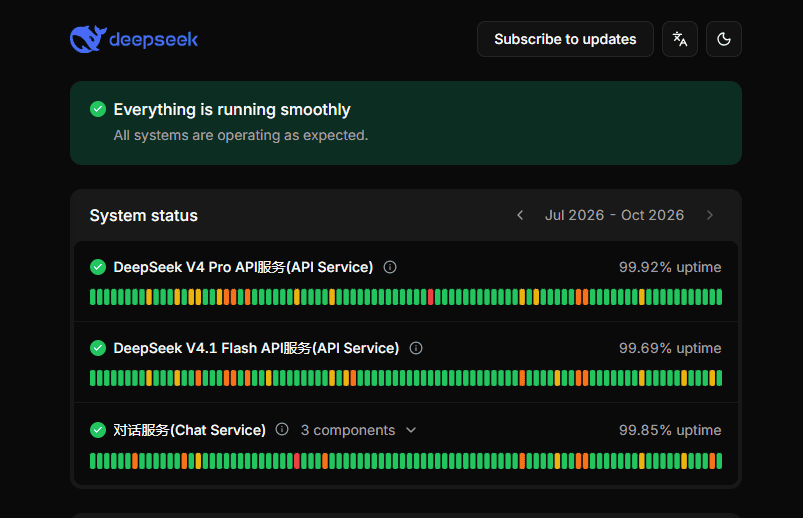
Service status at the time of capture. Check the official DeepSeek status page for live updates.Use the component names to avoid guessing. For example, a file upload problem can happen while normal chat still works. A Search Service issue can affect search-related answers while ordinary model replies still work. An API Service incident can affect developers even if the consumer chat interface loads.
- If the status page reports an incident: wait, reduce retries, avoid duplicate submissions, and follow official updates.
- If the status page is normal: continue with local, account, browser, app, or API checks.
- If community reports disagree with official status: treat them as secondary signals. Local, regional, account-specific, or unreported issues can still happen, but do not assume a global outage without stronger evidence.
DeepSeek web chat not working
If chat.deepseek.com is blank, slow, stuck, or failing only in one browser, use a narrow browser-first workflow.
- Check Chat Service status. If there is an incident, wait instead of repeatedly refreshing.
- Refresh once. Save your prompt first if it is long.
- Try a private or incognito window. This helps separate account/session cookies from a broader service issue.
- Try another browser. If another browser works, the issue is likely local to your first browser profile.
- Temporarily disable aggressive ad blockers or privacy extensions. Do this only if allowed by your device or organization policy.
- Clear DeepSeek site data only after simpler checks. Clearing cookies may sign you out.
- Test another network. Switch between Wi-Fi and mobile data if available, or try a different trusted network.
- Check VPN or proxy behavior. Turn it off only if it is safe and permitted. Do not bypass workplace or school security controls.
Do not assume one browser failure means DeepSeek is down. If the official status page is normal and another browser or network works, the problem is probably local.
DeepSeek login or signup not working
Login problems can be service-wide, but they are often account-specific or session-specific. Start with status, then check the sign-in path.
- Use the official DeepSeek route from deepseek.com or chat.deepseek.com.
- Use the same login method you used to create the account.
- If a verification email does not arrive, check spam, wait briefly, then request a new code only when needed.
- Do not repeatedly request OTP or verification codes in a short period.
- Do not share passwords, OTP codes, or account recovery details with anyone.
- If the same account fails on multiple devices while other users can log in, treat it as account-specific and contact official support.
Do not assume a country restriction, signup closure, or account ban unless a current official source or account-specific message supports that. Old incident reports can become misleading if presented as current.
DeepSeek app not working on mobile
The official DeepSeek download page links to the DeepSeek mobile app and official download routes. Use that page instead of unofficial APK mirrors or unknown download sites.
If the app does not open, freezes, or fails to sign in, try these checks:
- Check the official status page for Chat Service or related incidents.
- Update the app from the official app store or DeepSeek download page.
- Restart the app.
- Restart the device.
- Check storage, network connection, and system date/time.
- Switch between Wi-Fi and mobile data.
- Clear app cache if your device supports it and you understand the effect.
- Reinstall only after simpler checks fail.
Avoid installing unofficial copies of the app. If a download is unavailable in your region or store, check the official DeepSeek page and the official store listing rather than using a mirror.
DeepSeek Harness or desktop not working
DeepSeek Harness is a separate desktop agent/workflow product, not just the same as the consumer chat page. The official download page describes DeepSeek Harness as a desktop tool that can work in the background, edit local files, and handle long, complex tasks. It currently lists macOS and Windows routes, with macOS requiring Apple silicon and macOS 13 or later.
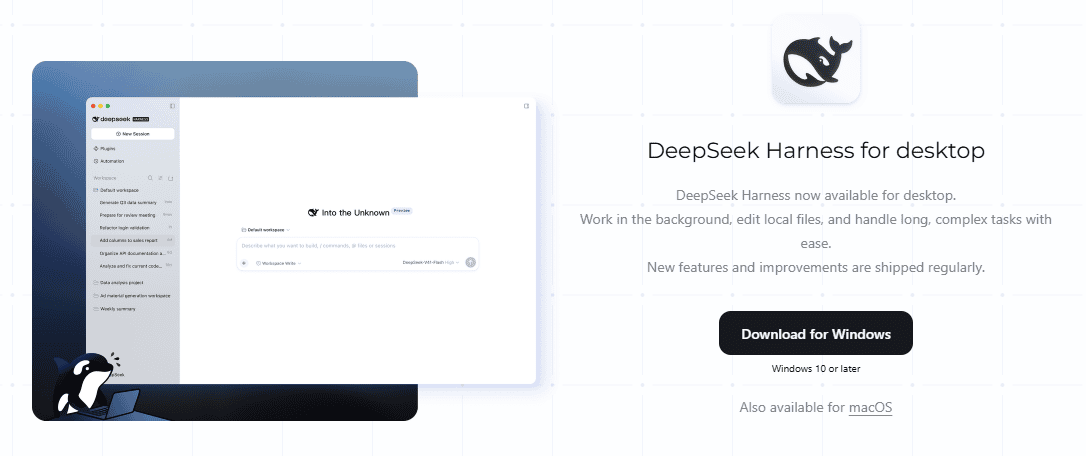
Check operating system compatibility and use DeepSeek’s official download page for Harness.If Harness is not working, separate desktop installation issues from DeepSeek service issues:
- Download only from the official DeepSeek download page.
- Confirm your operating system is supported.
- Update Harness if an update is available.
- Check whether the issue is local file permissions, network connectivity, account login, or an API/service problem.
- If a long-running task fails, retry carefully and avoid duplicating file edits without reviewing the workspace.
File upload or Search not working
DeepSeek’s status page tracks File Upload Service and Search Service separately. Check the matching component before changing browser or account settings.
If file upload fails
- Check File Upload Service status.
- Try again later if the service is degraded.
- Try a smaller non-sensitive file if appropriate.
- Do not upload confidential files just to test whether upload works.
- Do not invent or rely on file-size limits unless DeepSeek currently documents them for the surface you use.
If Search does not work
- Check Search Service status.
- Distinguish “Search is unavailable” from “the answer was weak.”
- Do not assume every prompt triggers web search.
- If the Search component is degraded, wait rather than repeatedly submitting the same query.
DeepSeek API not working: error-code checklist
If you are a developer, use the official DeepSeek Error Codes documentation first. Different status codes require different actions.
| Status code | Meaning | What to check | Safe next action |
|---|---|---|---|
400 | Invalid request format | JSON body, endpoint, API format, and request schema | Fix the request body before retrying |
401 | Authentication failure | API key, Bearer header, environment variable, and provider key | Fix authentication; do not retry unchanged |
402 | Insufficient balance | DeepSeek Platform balance and account used by the key | Resolve balance/account issue first |
422 | Invalid parameters | Model name, request fields, token limits, tools, and API format | Correct parameters before retrying |
429 | Rate limit reached | Concurrency, request pace, retries, queue depth, and user pressure | Use queueing, pacing, and bounded backoff |
500 | Server error | Status page and whether the issue persists | Retry after a brief wait with a bounded retry policy |
503 | Server overloaded | Status page, traffic spike, and retry behavior | Back off; avoid retry storms |
Do not treat all API failures as outages. A 401 usually points to authentication, a 402 points to balance, and a 429 points to pacing or concurrency pressure.
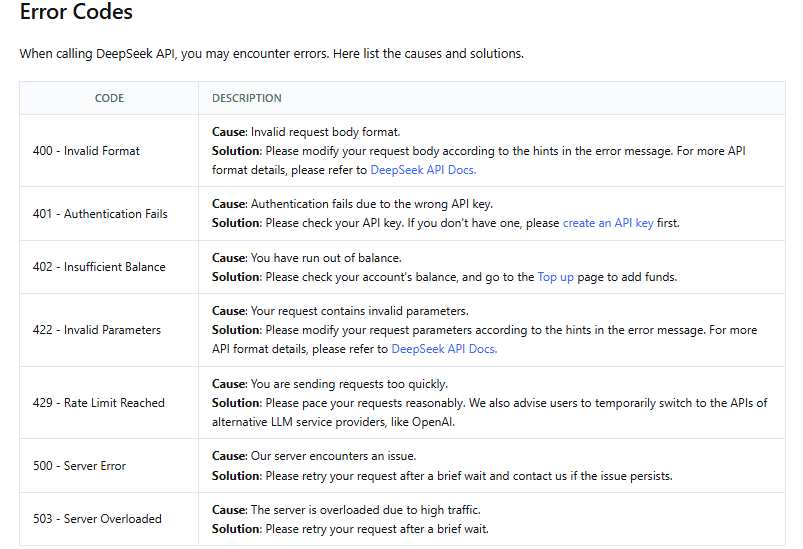
Match the returned API error code to its documented cause before choosing a fix.Fix DeepSeek API key, balance, and endpoint problems
For API calls, start with the basics before changing code architecture:
- Use a valid DeepSeek API key from the official DeepSeek Platform.
- Send the key as an HTTP Bearer token in the
Authorizationheader. - Use the correct base URL for the API format you chose.
- For the official OpenAI-compatible route, use
https://api.deepseek.com. - For the Anthropic-compatible route, use
https://api.deepseek.com/anthropiconly when the client expects Anthropic-format messages. - Confirm the model ID is current in the official Models & Pricing page.
- Check account balance when the API returns
402. - Make sure no stale environment variable is overriding the key or endpoint.
- Never paste your key into third-party “API key checker” websites.
DeepSeek API 429: rate limits and concurrency
DeepSeek’s current public Rate Limit & Isolation documentation emphasizes account-level concurrency limits rather than a simple per-key requests-per-minute table.
At the time of review, the documented public concurrency limits are:
| Model | Public concurrency limit | Scope |
|---|---|---|
deepseek-flash | 2,500 concurrent connections | Per account |
deepseek-v4-pro | 500 concurrent connections | Per account |
A request counts as one concurrent connection from the time it is sent until the model response is complete. The limit is calculated at the account level, regardless of which API key is used. Creating more API keys under the same account does not multiply capacity.
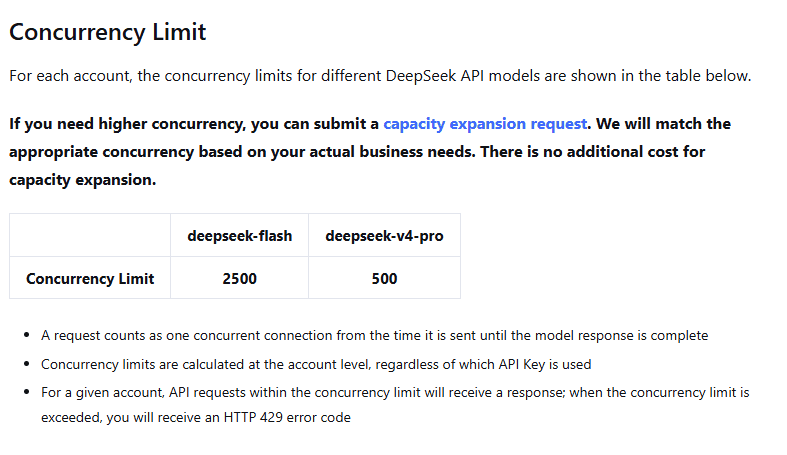
Concurrency limits apply at the account level; additional API keys do not create separate capacity.To reduce 429 errors:
- Queue requests before sending them to DeepSeek.
- Use a worker pool instead of launching unbounded parallel jobs.
- Separate
deepseek-flashanddeepseek-v4-protraffic. - Track active in-flight requests by model.
- Use bounded exponential backoff with jitter for retryable failures.
- Do not retry
401,402, or422unchanged. - Do not create retry storms after a service spike.
DeepSeek’s rate-limit documentation also explains that API requests can produce keep-alive data while waiting: non-streaming requests may return empty lines, and streaming requests may return SSE comments such as : keep-alive. These are not final model output. If a request has not started inference after 10 minutes, the server closes the connection.
Is the problem global or local?
Use this table to decide what kind of problem you are likely dealing with.
| Evidence | Likely interpretation | What to do |
|---|---|---|
| Official status page shows a Chat, API, File Upload, or Search incident | Likely service-side issue | Wait, reduce retries, and follow updates |
| Multiple devices and networks fail the same way | Could be service-side, account-side, or regional/network-side | Check status, then test account and network separately |
| Only one browser fails | Likely browser profile, cookies, extension, or cache issue | Try private window, another browser, then clear site data |
| Only one account fails | Likely account-specific issue | Use official support; do not share passwords or OTPs |
API returns 401 | Authentication issue | Fix API key, header, or environment variable |
API returns 402 | Balance issue | Check platform balance and billing account |
API returns 429 | Rate-limit or concurrency issue | Throttle, queue, and back off |
| Third-party app fails but official DeepSeek works | Likely third-party configuration or provider issue | Check that provider’s status, key, model route, and limits |
Safe retry rules
Retries can help, but unsafe retries can make outages, rate limits, and billing worse.
For chat and app users
- Refresh once or twice, not continuously.
- Save long prompts before refreshing.
- Do not repeatedly submit the same prompt during a suspected outage.
- Do not repeatedly request verification codes.
- Wait if the relevant service component is degraded.
For developers
- Retry
429,500, and503only with bounded backoff and jitter. - Do not retry
401,402, or422unchanged. - Use a maximum retry count and a total time budget.
- Avoid hidden retry layers that multiply the same request.
- Log status code, model, endpoint, and timing, but redact prompts and never log API keys.
Third-party providers, plugins, and integrations
DeepSeek models may be accessed through the official DeepSeek API, cloud providers, gateways, IDE plugins, agent frameworks, local/self-hosted deployments, or third-party apps. If DeepSeek is “not working” through one of those routes, the problem may not be DeepSeek’s official service.
Check the third-party provider’s own status, key, endpoint, model name, quota, billing, and wrapper behavior. Do not transfer the official DeepSeek status page, pricing, or rate limits to a gateway unless that provider says it uses the same route and rules.
When to contact DeepSeek support
Contact official support when the issue appears account-specific, persists across devices and networks, or involves a billing/API problem that you cannot resolve from the documentation. The official DeepSeek homepage currently lists [email protected], and the API documentation pages list [email protected] for API-related contact.
Before contacting support, collect safe diagnostic details:
- which surface is affected: chat, app, Harness, file upload, search, API, or billing;
- time and timezone;
- the official status page condition at the time;
- browser or app version if relevant;
- sanitized API status code if relevant;
- whether it reproduces on another device or network;
- redacted logs that do not include API keys or private prompts.
Do not share passwords, OTPs, full API keys, confidential documents, complete private prompts, or screenshots containing personal data.
Security checks while troubleshooting
When a service is not working, it is easy to make the problem worse by sharing secrets or installing unofficial tools. Avoid these mistakes:
- Do not paste API keys into forums, screenshots, or unknown “checker” websites.
- Do not share passwords or OTPs.
- Do not upload confidential files just to test upload.
- Do not install unofficial app mirrors.
- Do not permanently disable security tools to make a website load.
- Do not post full account screenshots that reveal personal data.
DeepSeek not working checklist
- Open the official DeepSeek Status page.
- Identify the affected surface: chat, app, Harness, file upload, search, API, login, or billing.
- If the status page shows an incident, wait and avoid repeated retries.
- If web chat fails, try private mode, another browser, and another trusted network.
- If the mobile app fails, update it from the official route, restart it, then test another network.
- If login fails, wait before requesting more codes and do not share OTPs.
- If file upload or search fails, check the matching status component.
- If the API fails, read the exact status code before changing code.
- For
401, fix authentication. For402, check balance. For429, reduce concurrency and request pace. - Contact official support with redacted diagnostics only if the issue persists.
FAQ
Is DeepSeek down right now?
At the time this article was checked, the official DeepSeek Status page showed that systems were operating normally. Always check status.deepseek.com for the current condition before assuming there is a global outage.
Why is DeepSeek not loading in my browser?
If the official status page is normal, browser problems are often caused by cookies, extensions, cached site data, network settings, VPN/proxy behavior, or a browser profile issue. Try private mode, another browser, and another trusted network before clearing site data.
Why can’t I log in to DeepSeek?
Login failures can be account-specific, session-specific, or service-related. Check status, use the original sign-in method, wait before requesting repeated codes, and never share OTPs or passwords.
Why is the DeepSeek API returning 401?
A 401 means authentication failed. Check that the API key is valid, the Authorization header uses the Bearer format, the correct key is loaded by your process, and no stale environment variable is overriding it.
Why is the DeepSeek API returning 402?
A 402 means insufficient balance. It is not a rate-limit error. Check the DeepSeek Platform balance and the account that owns the API key.
Why is the DeepSeek API returning 429?
A 429 means rate limit reached. DeepSeek’s current public documentation emphasizes account-level concurrency. Use queues, pacing, bounded backoff, and lower in-flight request counts rather than rapid retries.
Is it safe to share my API key with support?
No. Do not share full API keys, passwords, OTPs, or confidential prompt content. Share only redacted diagnostics through official support channels.